Feature deep-dive
Enhance just the part you need: Topaz on a trimmed range in EDIT
Upscale, interpolate, denoise or deblur only the in–out range of a clip. You see the price first, and nothing on the timeline changes until you choose.
A take is often longer than the part that ends up in the edit. In EDIT you can now send only the trimmed range of a clip to Topaz Labs, so you pay for the seconds you actually use.
What it is
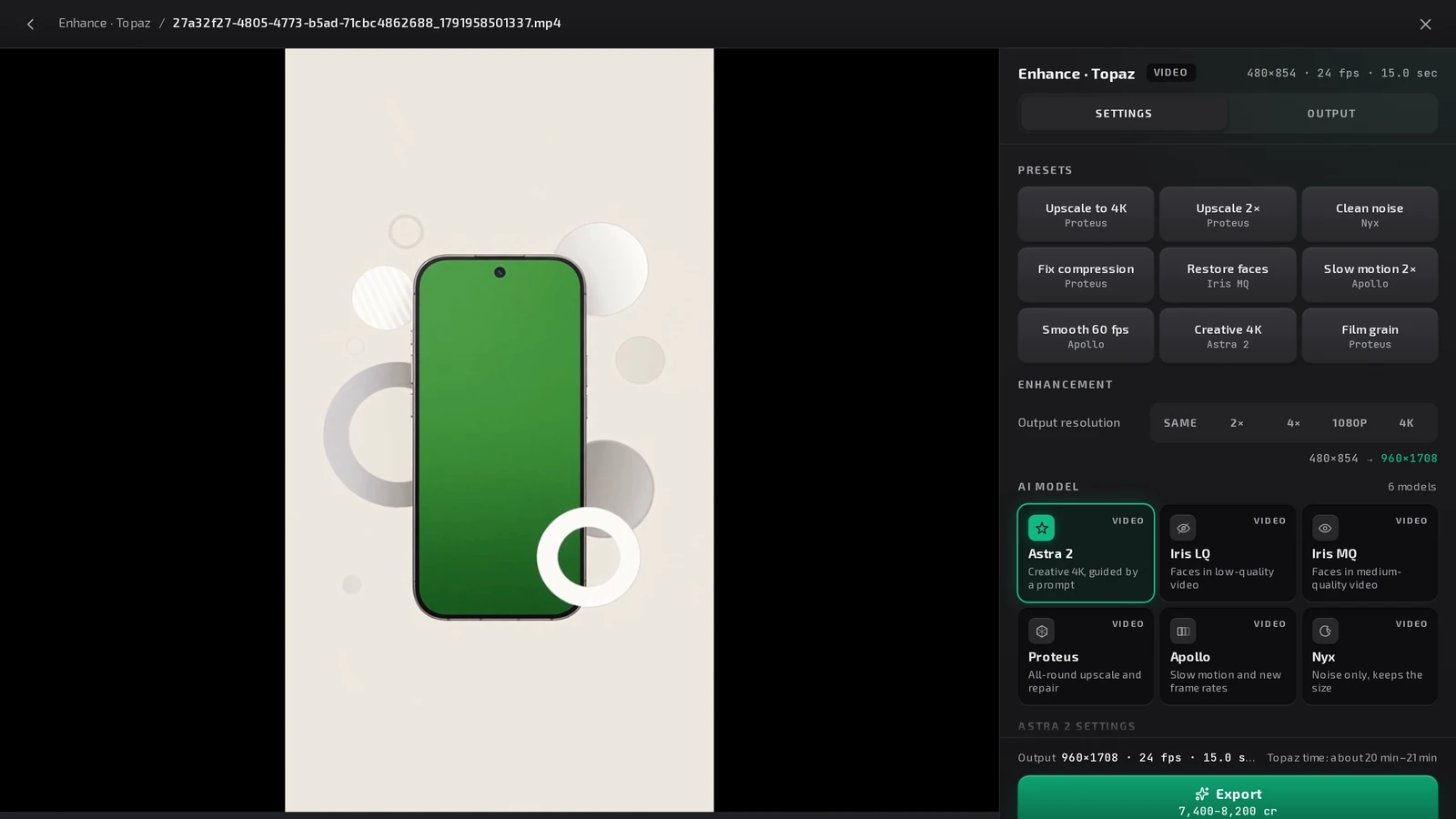
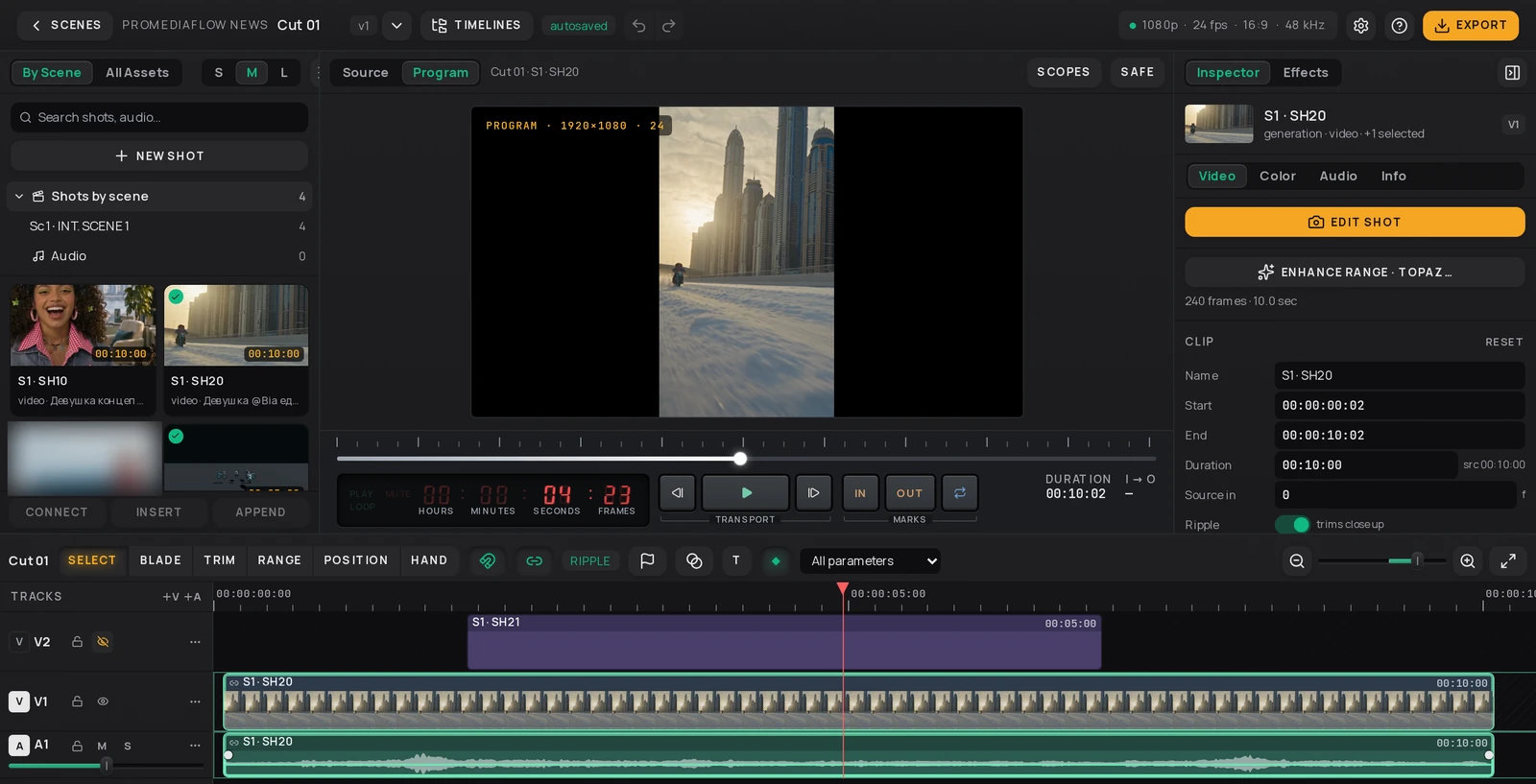
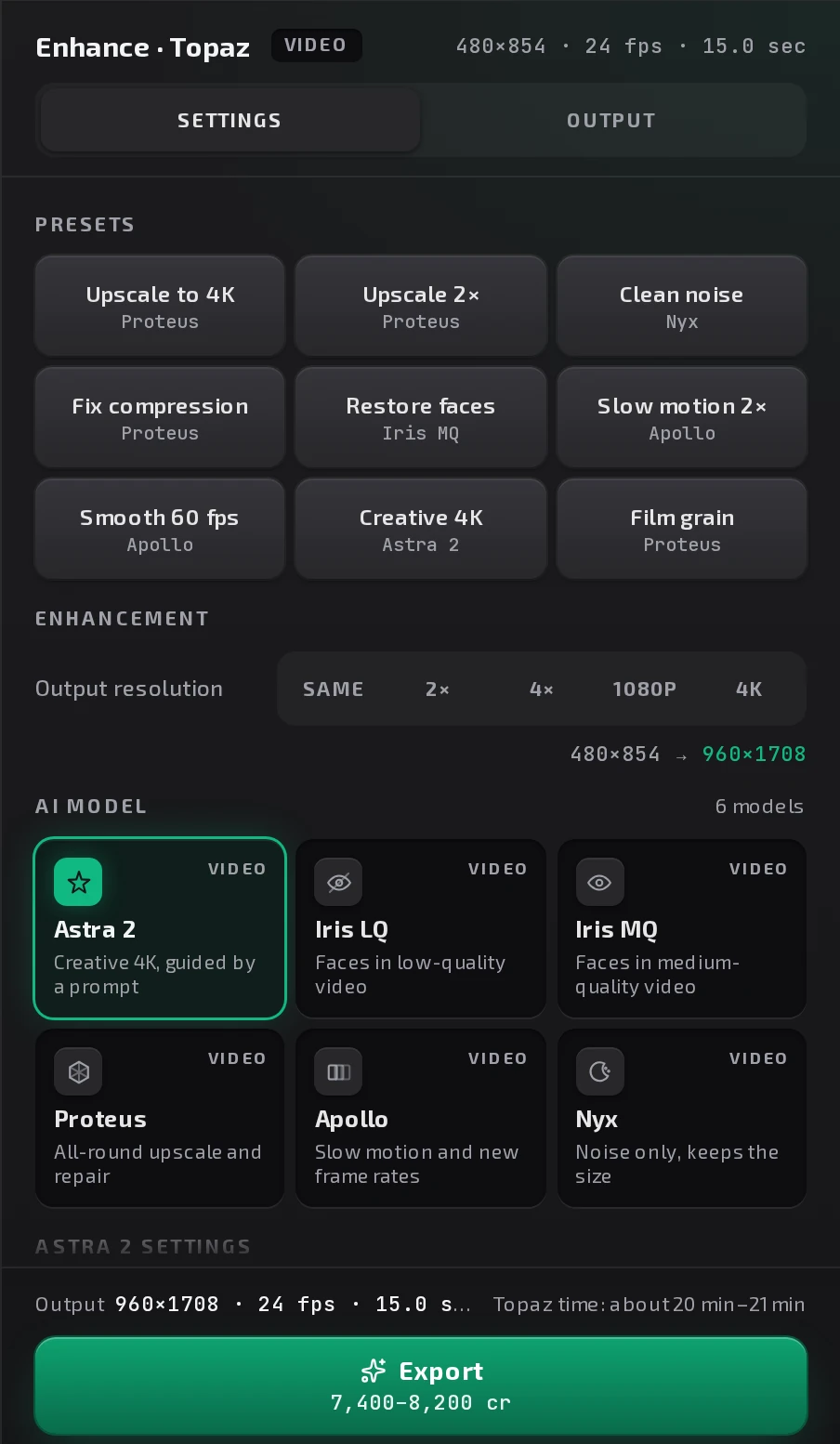
Enhance range · Topaz… takes the trimmed part of a shot's picture clip, the range between its in and out points, and opens it in the same Enhance · Topaz window you know from the asset viewer. Pick a tool:
- Upscale / enhance
- Frame interpolation
- Denoise
- Motion deblur
Why it helps
- You pay for the range, not the take. The price is quoted for the cut, not the whole file.
- Frame-exact. The range is cut on your device to the exact frames of your trim before anything is uploaded.
- Safe by default. Nothing on the timeline is replaced until you say so.
Step by step
- In EDIT, select the shot's picture clip and trim it to the range you need.
- In the Inspector, open the Video tab and press Enhance range · Topaz….
- The range is cut on your device (Cutting the range…, then Saving the cut…) and saved to the project. This step costs no credits.
- The Enhance · Topaz window opens with the cut. Choose a tool and its settings.
- Check the price and press Enhance.
- When it is ready, choose Replace clip on timeline or Add as new version.
Tips and limits
- Replace clip on timeline can be undone: Undo puts the original back.
- Add as new version keeps the timeline as it is; the enhanced range is saved as a new version of the shot.
- The job keeps going if you switch panels, so you never pay twice for the same range.
- Topaz quotes a range ("about N credits, at most M") and settles the exact amount when it finishes. If Topaz cannot finish a job, nothing is charged.
In the app
Where to find it
Projects → open a project → EDIT → select a picture clip → Inspector → Video → Enhance range · Topaz…
Related
Published